How to turn a video into a SCORM course that tracks completion
Updated 1 October 2026
Uploading a bare MP4 to an LMS rarely tracks anything. Wrapped in a SCORM package, the same video can report when a learner has watched it, and a quiz afterwards can report what they learned.
1. Prepare the video
- Format: MP4 with H.264 video and AAC audio plays in every browser. WebM works in most. ZipCourse warns you if a file may not play everywhere.
- Size: 1080p at a modest bitrate is plenty for most training: roughly 5 to 8 MB per minute. Many LMSs limit uploads to somewhere between 100 MB and 2 GB, so check yours. Tools such as HandBrake can shrink a large file without visible loss.
- Length: several short videos (3 to 8 minutes each) beat one long one. Learners can stop and resume between them, and you can put a question or two in between.
2. Add captions
Captions help everyone, and are essential for deaf and hard-of-hearing learners and anyone watching without sound. Most video tools and transcription services export captions as .vtt or .srt files. Select the video slide in ZipCourse and drop the captions file onto it.
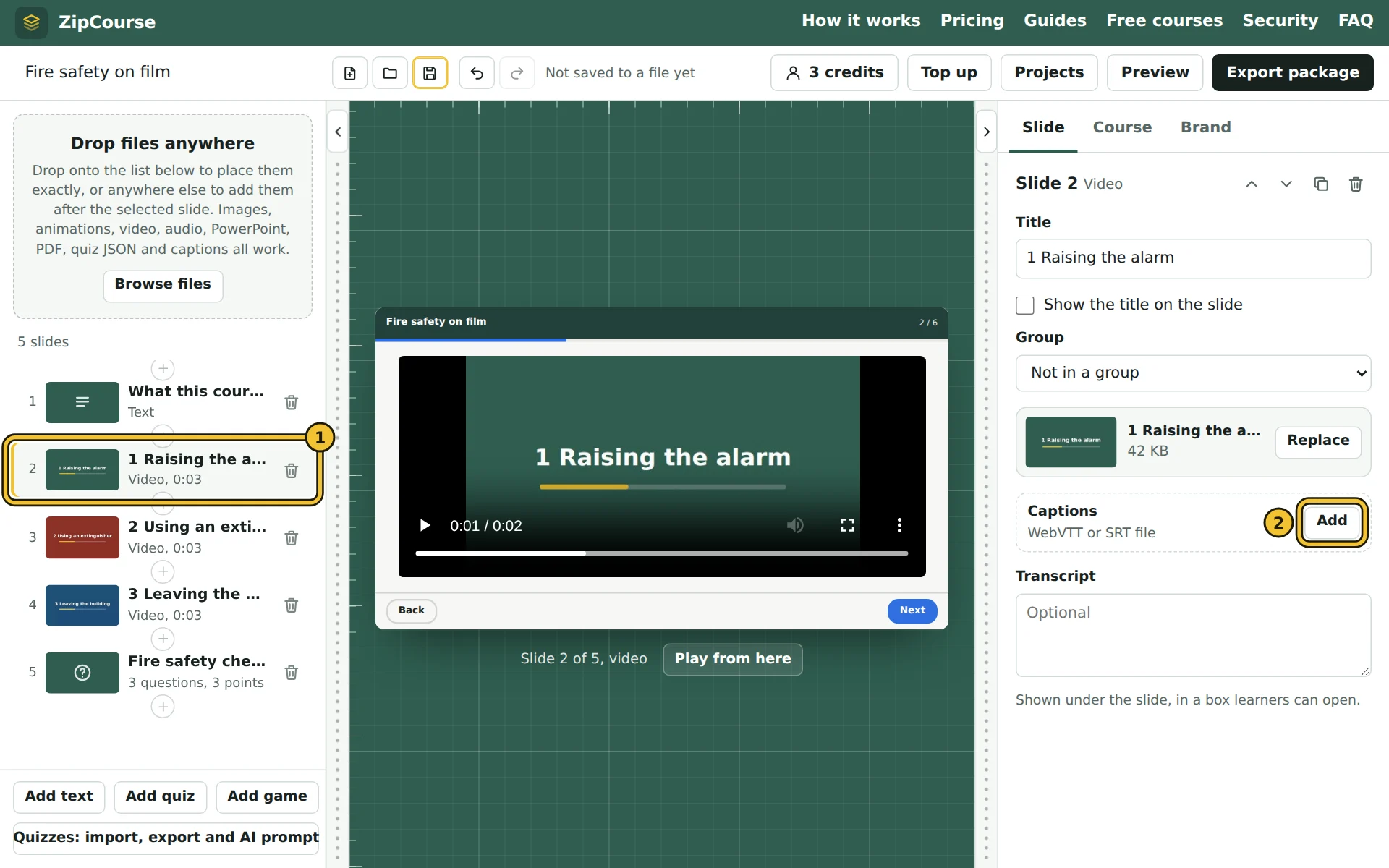
- 1Select the video slide in the list.
- 2Add next to Captions, then choose the .vtt or .srt file. Dropping the file onto the editor does the same.
3. Build the course
Open the editor and drop your videos onto it: each becomes a slide. Add a text slide at the start saying what the course covers, and a quiz at the end.
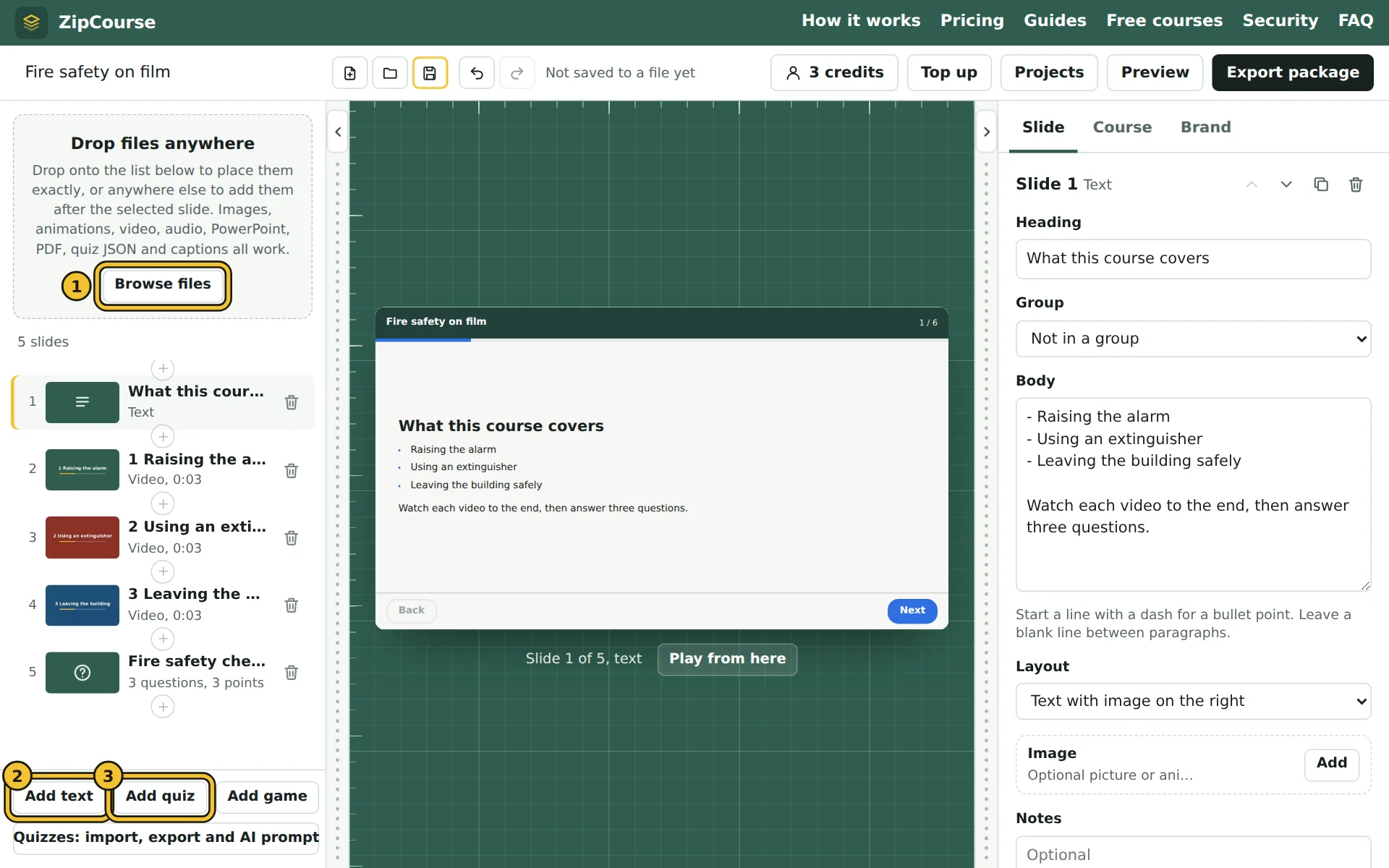
- 1Browse files to add your videos, or drop them anywhere on the editor.
- 2Add text slide, for the introduction.
- 3Add quiz, for the questions at the end.
New slides go after the one you have selected. Drag slides in the list to change their order.
4. Make viewing count
In the Course tab, set Moving between slides to "Learners finish each slide before moving on". Learners then have to play each video to the end, and submit each quiz, before they can continue. Set completion to "Viewed every slide" for a video-only course, or include the quiz.
Press Preview to try it: the LMS activity log shows progress being recorded as the video plays.
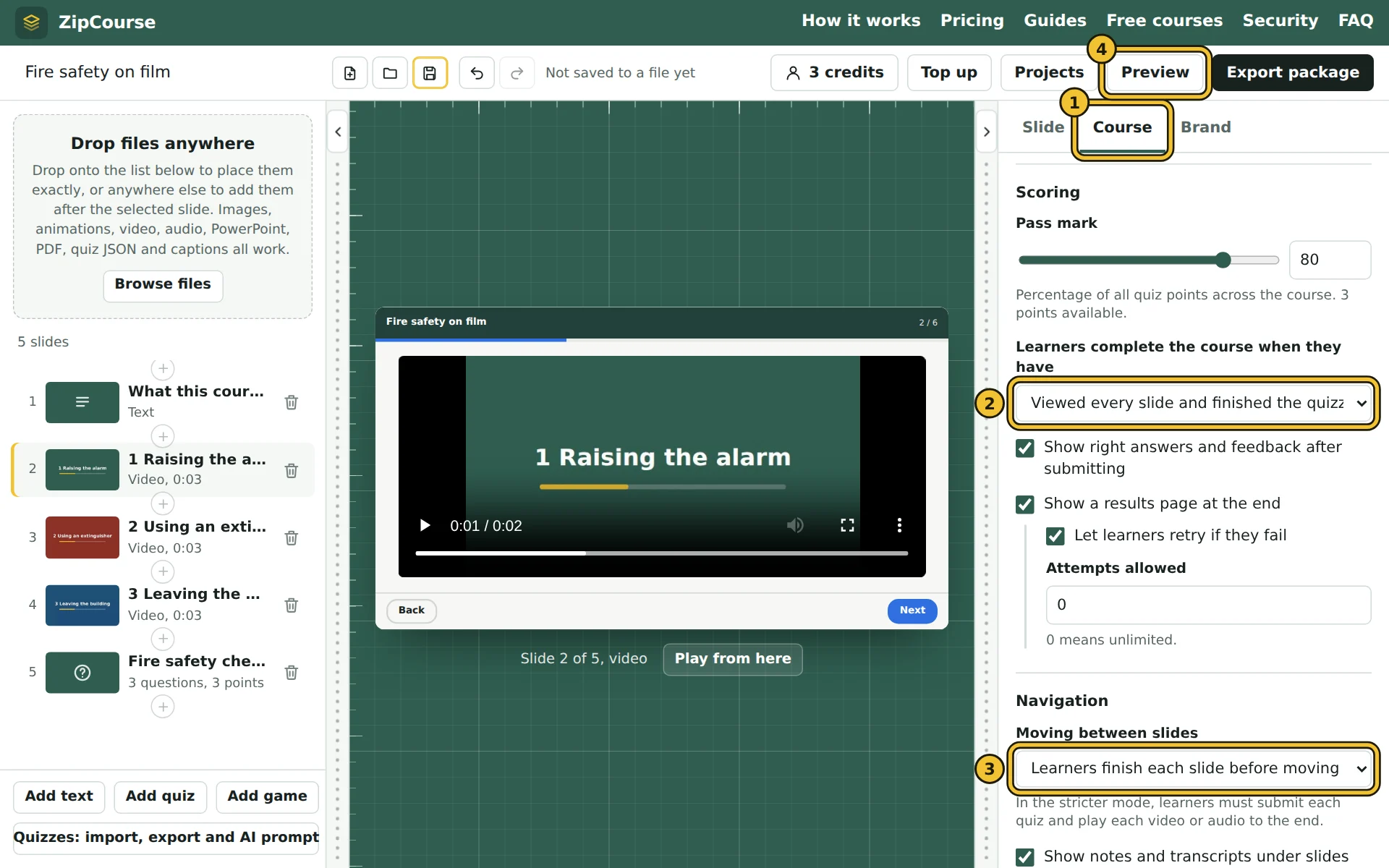
- 1The Course tab.
- 2What learners need to do to complete the course.
- 3Moving between slides, set to "Learners finish each slide before moving on".
- 4Preview, to try it as a learner.
5. Export and upload
Press Export package, at the top right, and choose SCORM 1.2 for the widest support, or SCORM 2004 if your LMS prefers it. Each download is one format, so your video is packed once. Exporting uses one credit (from £5 for 3 courses).
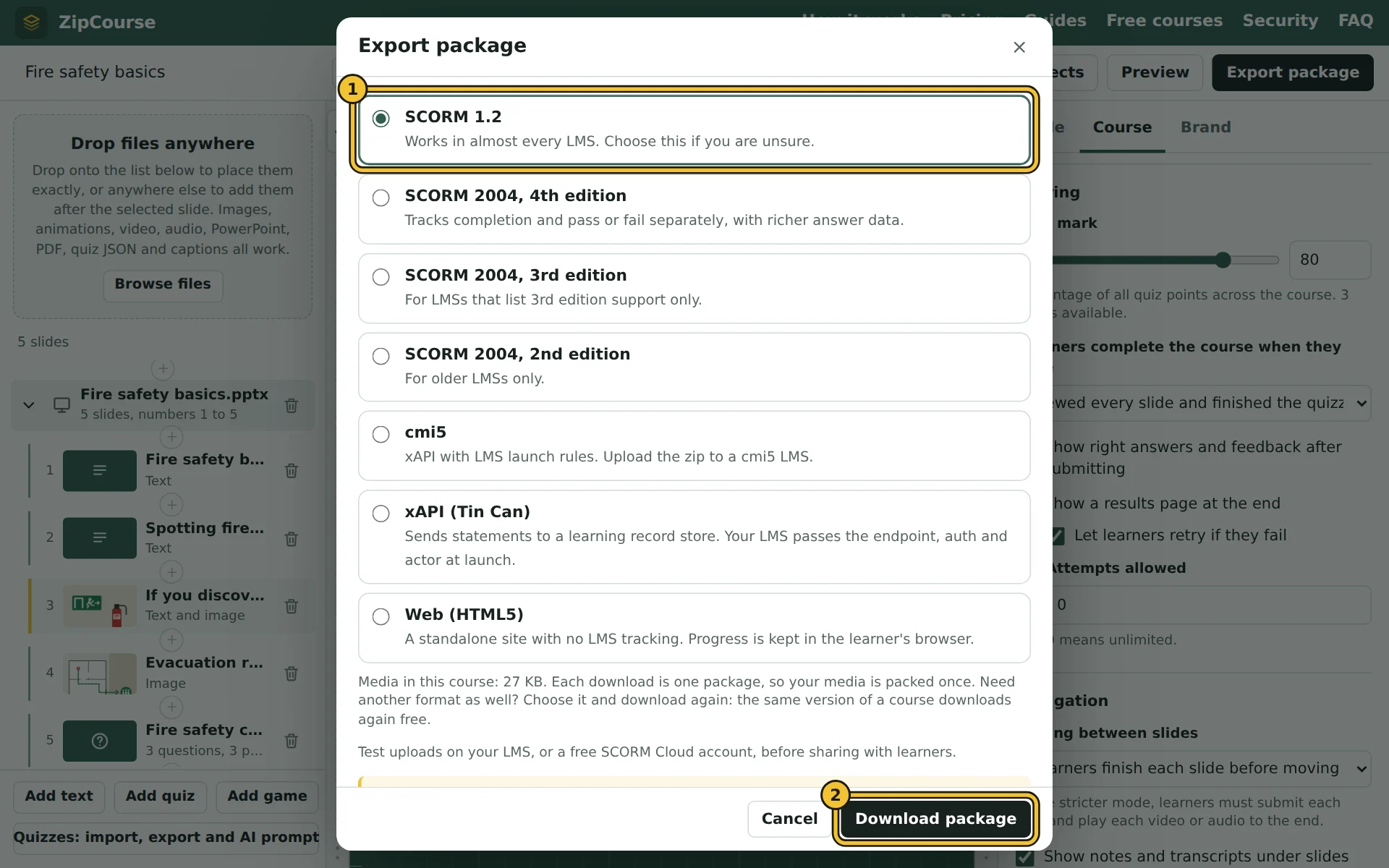
- 1Choose a format. SCORM 1.2 is chosen here.
- 2Download package. The window says what the export costs before anything is charged.
Already on YouTube or Vimeo? Link to it
A video that is already on YouTube or Vimeo can play from there instead of going into the package. The same works for podcasts: an episode on Spotify, Apple Podcasts or SoundCloud, or a link to the episode's audio file (the .mp3 in its feed).
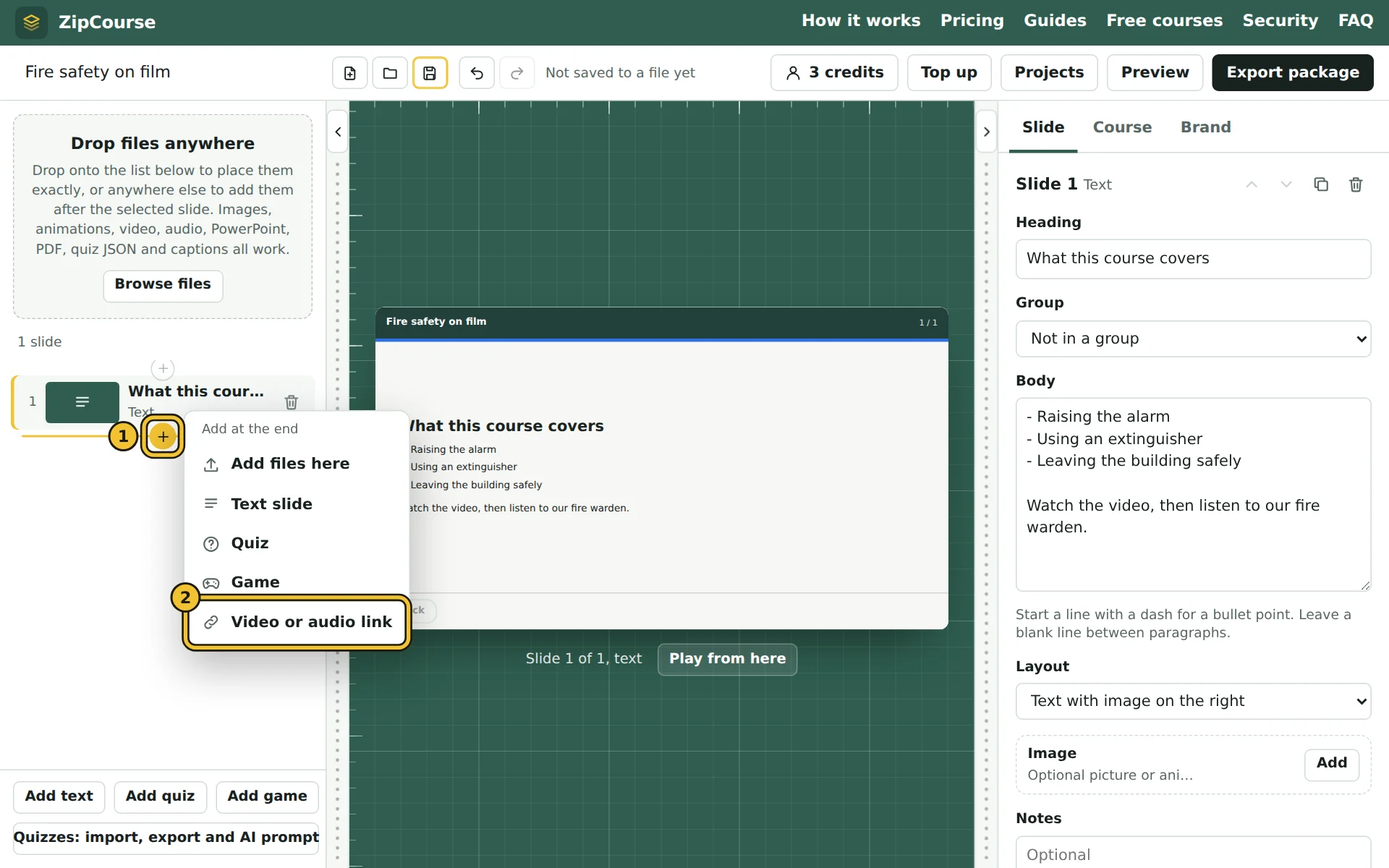
- 1The + button where the slide should go.
- 2Video or audio link.
Paste the link from your browser's address bar, the site's Share link, or its embed code. ZipCourse works out what it is and how to play it.
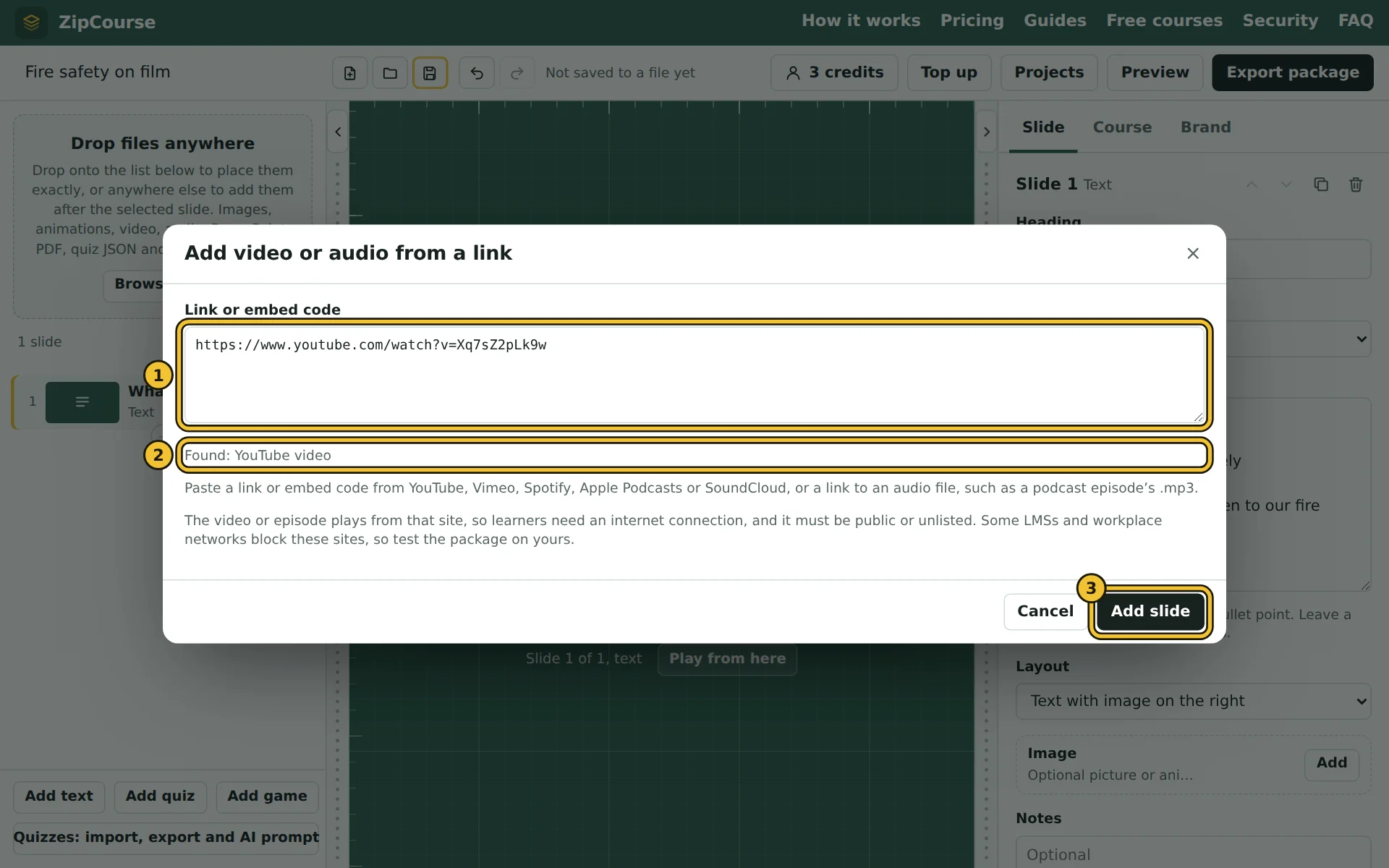
- 1The link or embed code.
- 2What ZipCourse found in it.
- 3Add slide.
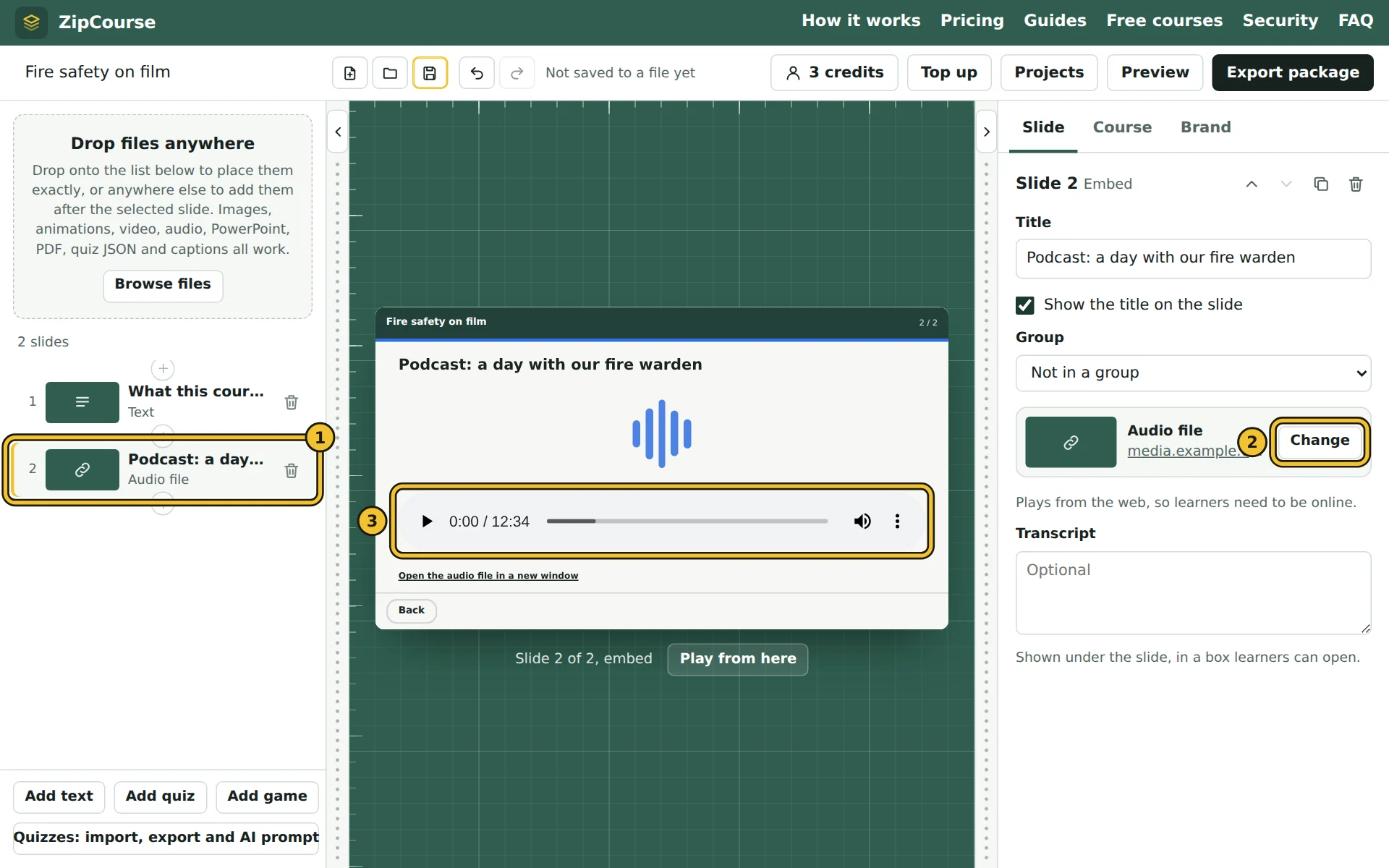
- 1The new slide in the list.
- 2Change, to paste a different link.
- 3An audio file link plays in the course's own player.
- Learners need to be online. The video or episode stays on that site, so it won't play offline, and some LMSs and workplace networks block these sites. Test the package on your LMS before you share it.
- Use public or unlisted links. Private, password-protected and age-restricted videos won't play, and nor will paid or subscriber-only episodes. A Vimeo video limited to certain websites plays only where your LMS's address is allowed.
- Required viewing still works for YouTube, Vimeo, SoundCloud and audio file links: they tell the course when they finish. Spotify and Apple Podcasts can't, so learners can always move on from those slides, and so can learners whose player doesn't load.
To see a video link slide in a finished course, try one of our free Copilot prompting courses.
Which is better? Linking keeps packages small. Packing the video files themselves, as in the steps above, works everywhere, including offline and behind firewalls, without a separate video account.