How to make a quiz from a document with AI
Updated 1 October 2026
Writing good quiz questions takes time. An AI assistant can draft them from your own material in minutes, as long as you give it clear instructions and check what it writes. ZipCourse gives you the instructions.
1. Get the prompt
In the editor, open Quizzes: import, export and AI prompt, under the slide list, and choose Download AI prompt. It's a plain text file of instructions that tells the assistant to write questions only from your material, to ask you a few questions first, to show you everything for approval, and to hand back JSON in exactly the format ZipCourse imports.
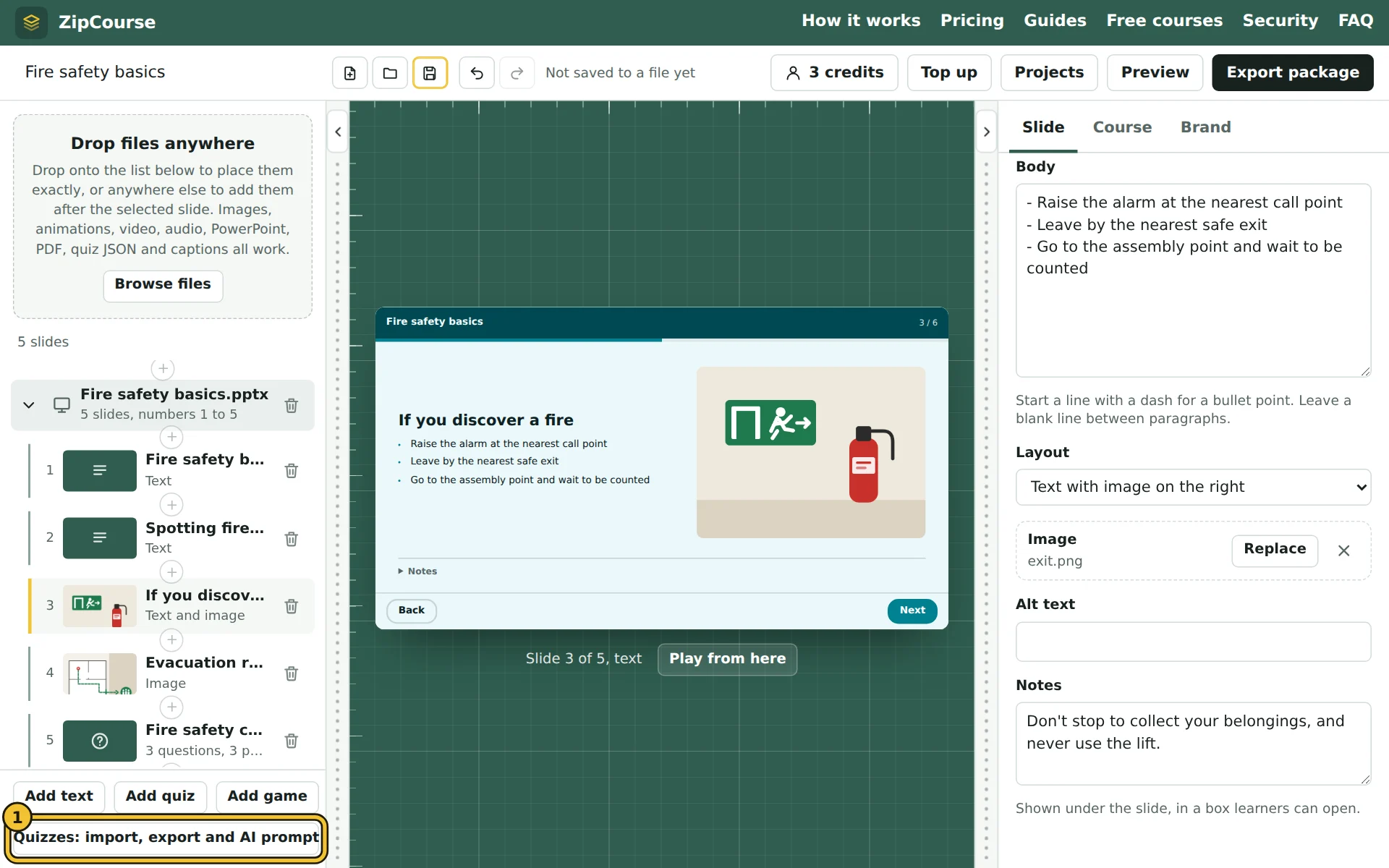
- 1Quizzes: import, export and AI prompt.
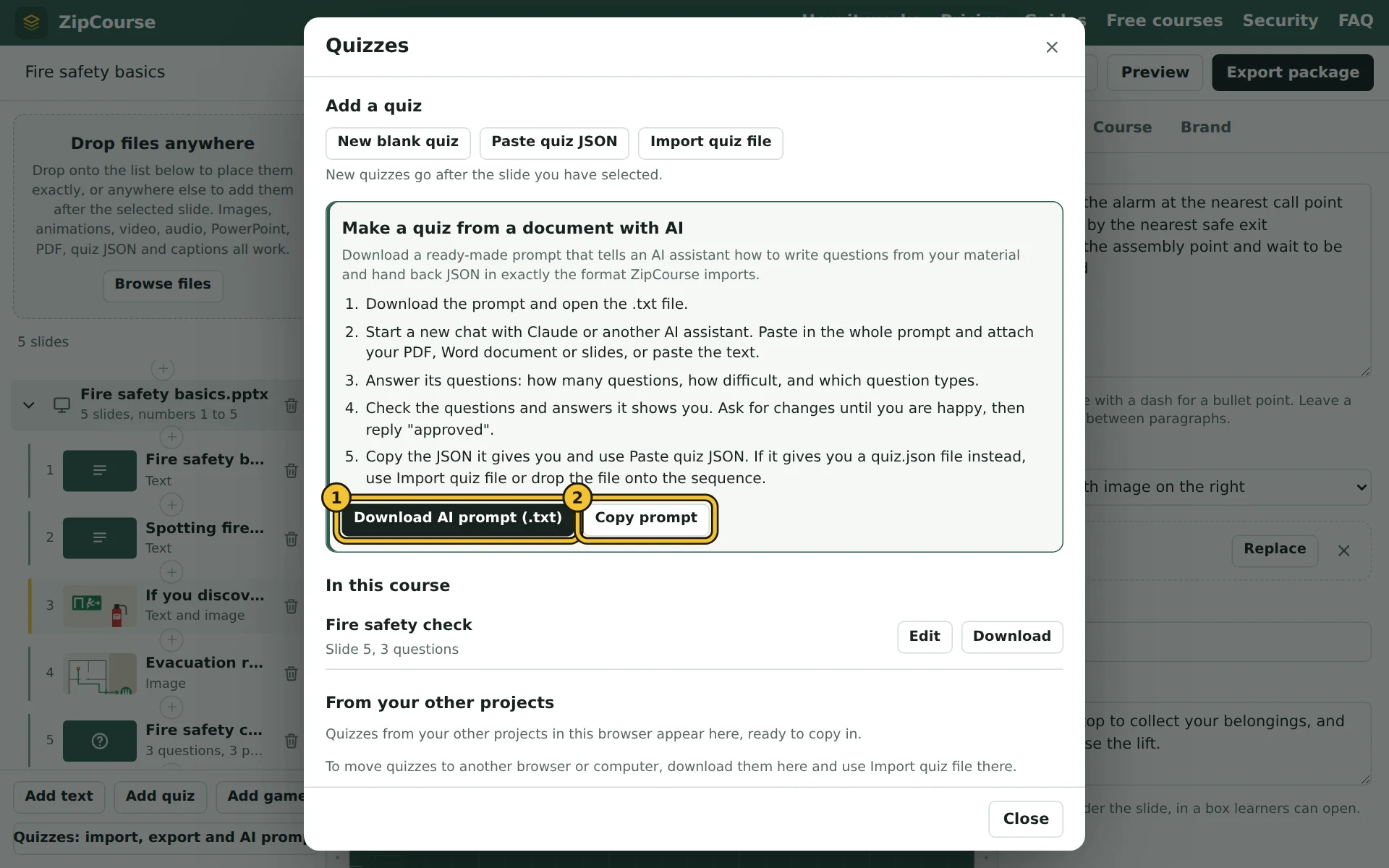
- 1Download AI prompt (.txt) saves the prompt as a text file.
- 2Copy prompt copies it instead, ready to paste into the chat.
2. Start a new chat
Open Claude or another AI assistant. Paste in the whole prompt and attach your PDF, Word document or slides, or paste the text. The assistant summarises what the material covers, then asks:
- how many questions (it suggests a number that suits the material);
- how difficult: recalling facts, applying them, judging scenarios, or a mix;
- which question types: one right answer, several right answers, true or false, or a mix;
- anything else, such as a title or which sections to focus on.
Reply "defaults" to accept its suggestions.
3. Check every question
The assistant shows the full quiz as readable text, with the right answers marked, a line of feedback for each, and where in your material it comes from. Read it as a learner would:
- Is each right answer actually right, according to your material?
- Are the wrong answers plausible, without being arguably right?
- Does it test what matters, rather than trivia?
Ask for changes in plain words ("make question 4 harder", "replace question 7 with one about evacuation routes"). When you're happy, reply "approved".
You are the expert. AI assistants can be confidently wrong. The prompt tells it to use only your material and cite where each question comes from, which makes checking quick, but checking is still your job.
4. Import
The assistant gives you the quiz as JSON. In ZipCourse, open a quiz slide's Paste JSON (or Quizzes, then Paste quiz JSON), paste it, and choose to replace or add the questions. If it gives you a quiz.json file instead, drop the file onto the editor.
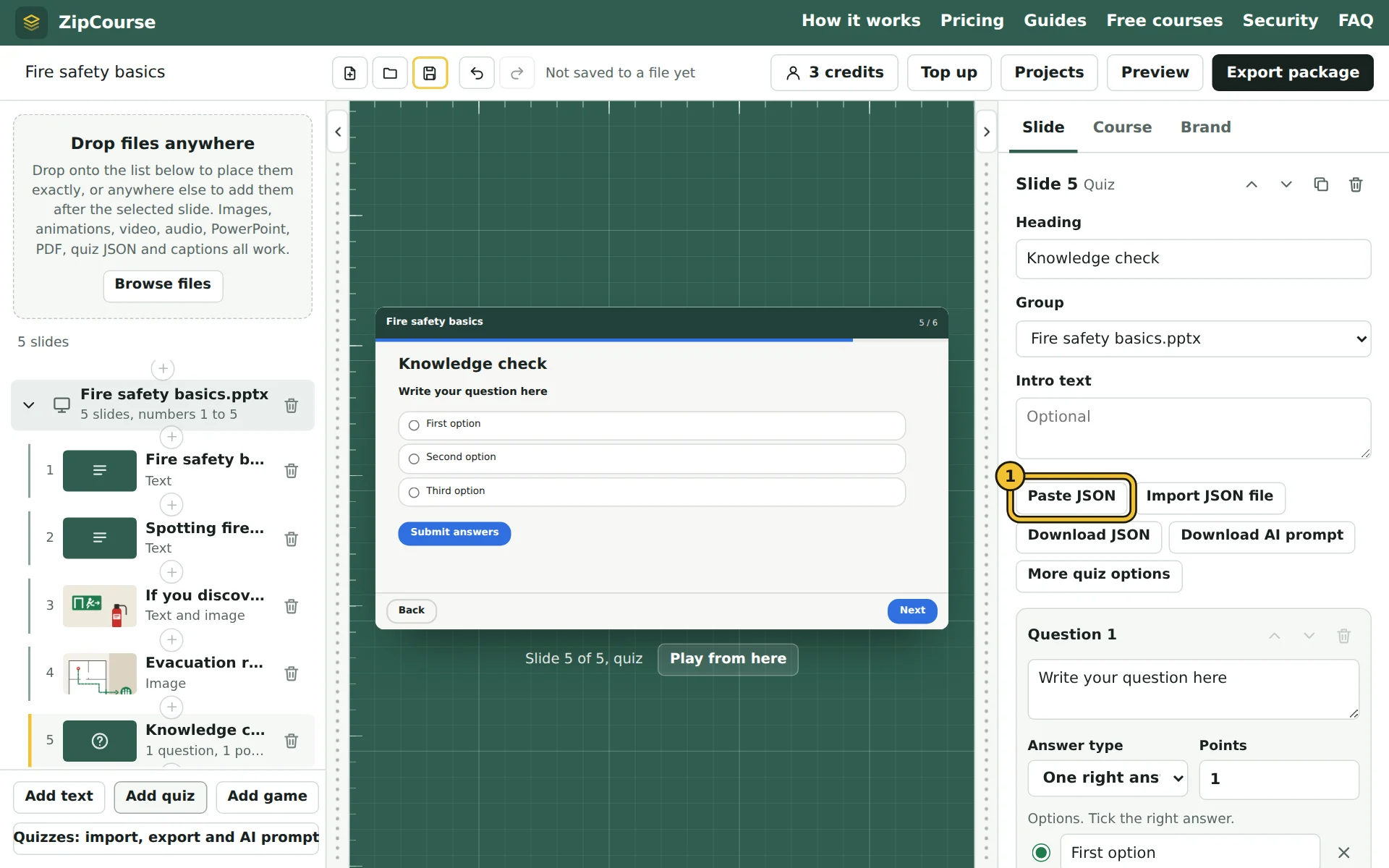
- 1Paste JSON, with the quiz slide selected. No quiz yet? Add quiz, under the slide list, makes one.
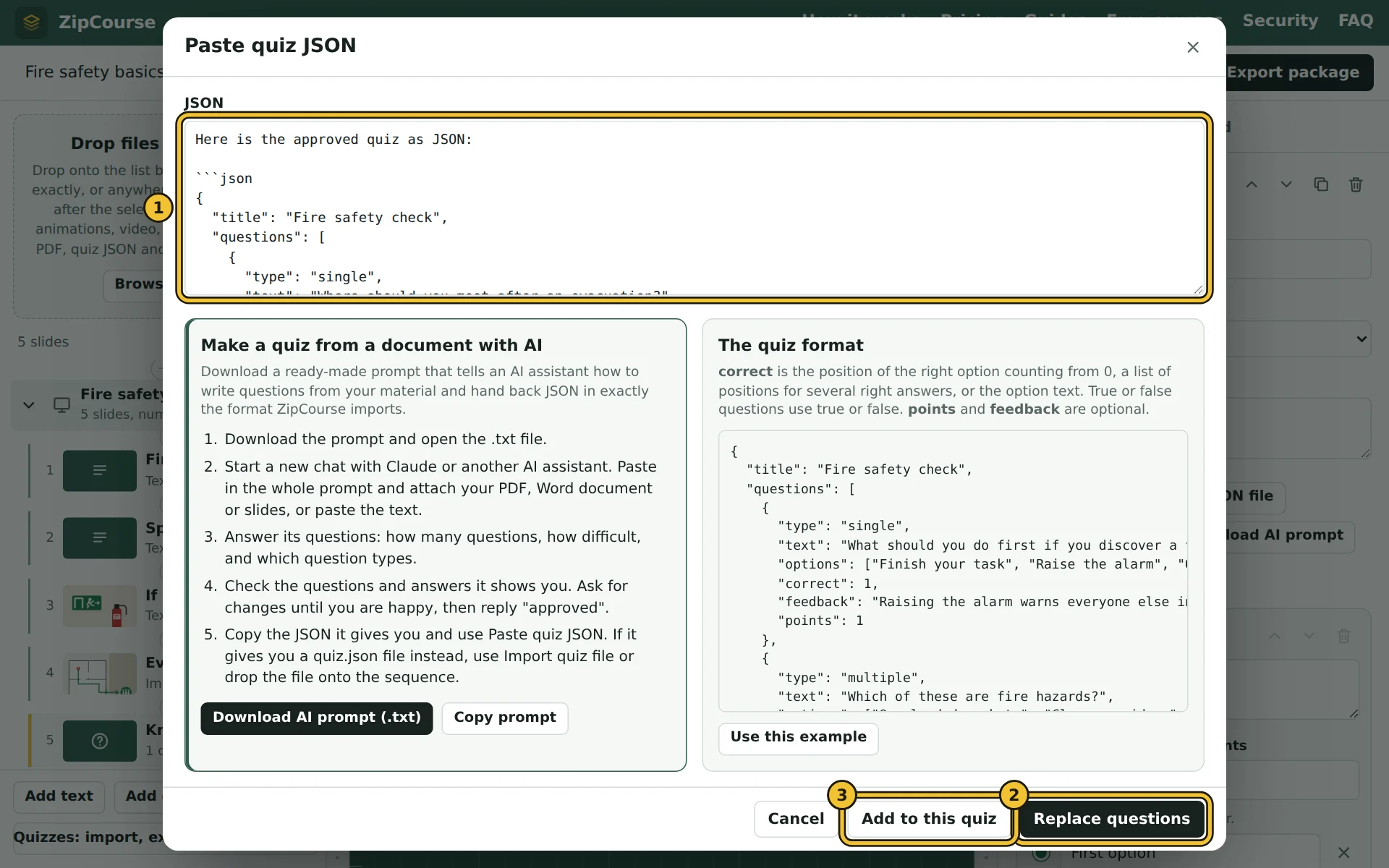
- 1Paste the JSON. You can paste the assistant's whole reply: the JSON is picked out automatically.
- 2Replace questions swaps the quiz's questions for the new ones.
- 3Add to this quiz keeps its questions and adds the new ones.
Then set the pass mark in the Course tab and try the quiz in Preview.
The format
If you'd rather write questions yourself, or with a script, this is the format ZipCourse imports:
{
  "title": "Fire safety check",
  "questions": [
    { "type": "single", "text": "Where should you meet after an evacuation?",
      "options": ["The car park", "The assembly point", "Reception"], "correct": 1,
      "feedback": "Everyone meets at the assembly point so they can be counted." },
    { "type": "multiple", "text": "Which of these are fire hazards?",
      "options": ["Overloaded sockets", "Blocked fire doors", "A tidy desk"], "correct": [0, 1] },
    { "type": "truefalse", "text": "You should use the lift during a fire.", "correct": false }
  ]
}
correct counts from 0: the first option is 0, the second is 1.
Privacy
Your document goes to the AI assistant you choose, under that service's terms; check your organisation's rules before sharing confidential material. ZipCourse never sees the document or the quiz.