How to add games to an e-learning course, with scores your LMS records
Updated 1 October 2026
A short game is a reward learners notice. ZipCourse has 32 of them built in, from a kart race to a word wheel, and each lasts 30 seconds. Offer one as a bonus for a perfect quiz, put one on a slide of its own, or both. Scores go to your LMS, and never change whether a learner passes.
Want to see it from the learner's side first? Each of our free Copilot prompting courses has a game slide after each quiz, where learners choose between two games.
Two ways to use games
- Bonus games reward a learner who gets every question in a quiz right on their first try. They choose one of two games to play. Turn them on once, in the Course tab, and every quiz in the course offers one.
- Game slides sit wherever you put them, like any other slide: a break between sections, or something to look forward to at the end. Every learner who reaches the slide can play.
The games come in two sorts. Action games are arcade, casual and timing games, played with the arrow keys, a mouse or a finger. Brain games are maths, logic and word games; the word games are in English.
1. Turn on bonus games
In the editor, open the Course tab and find Bonus games, at the end. Choose what to offer after a perfect first try at a quiz: an action game and a brain game, two action games, or two brain games. The two games are picked at random for each learner and each quiz.
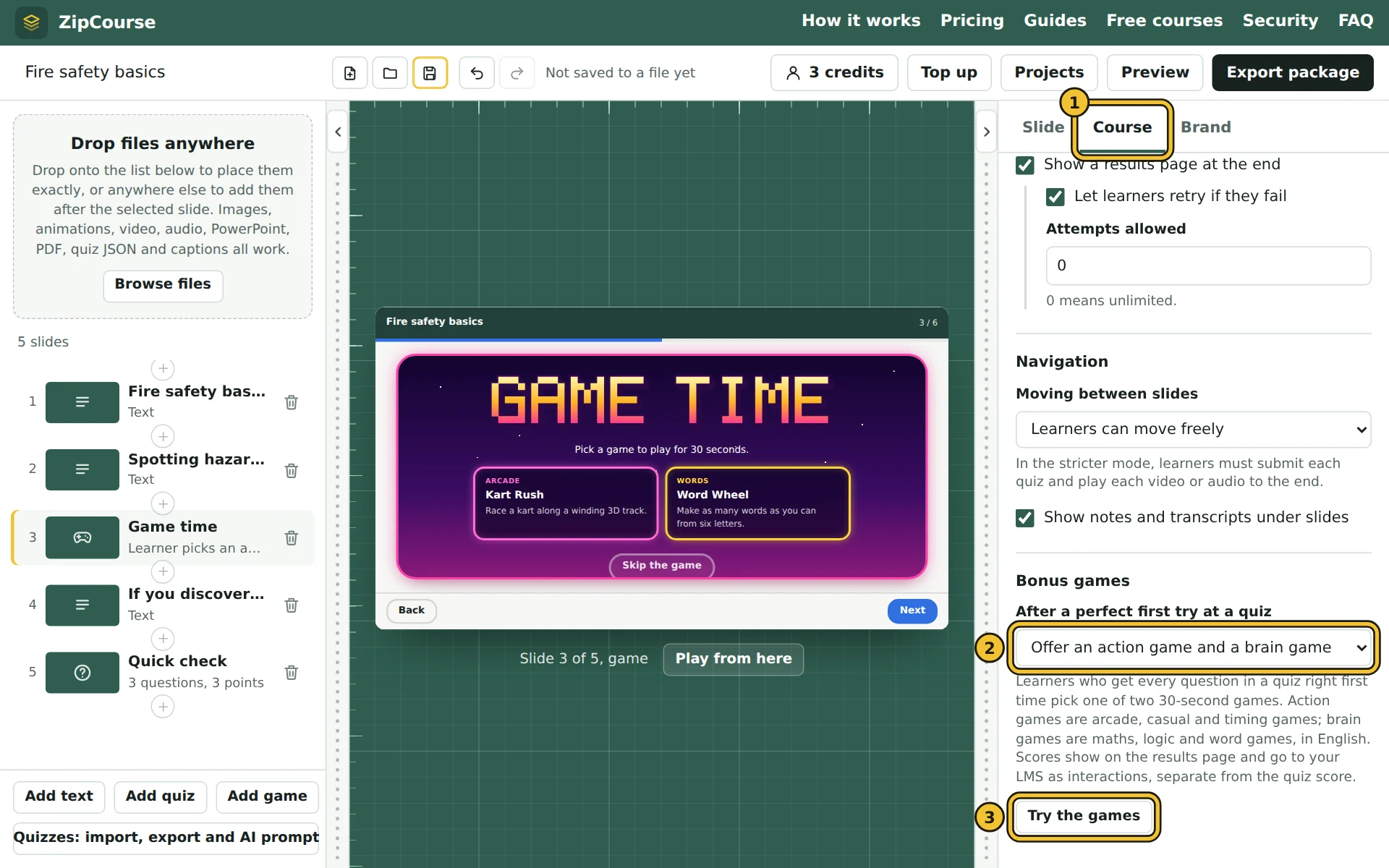
- 1The Course tab.
- 2After a perfect first try at a quiz: what to offer. "No bonus game", the setting for new courses, turns bonus games off.
- 3Try the games opens every game, in your course's colours, to play yourself.
A learner who answers every question in a quiz correctly, on their first attempt at the course, sees a bonus round under their score:
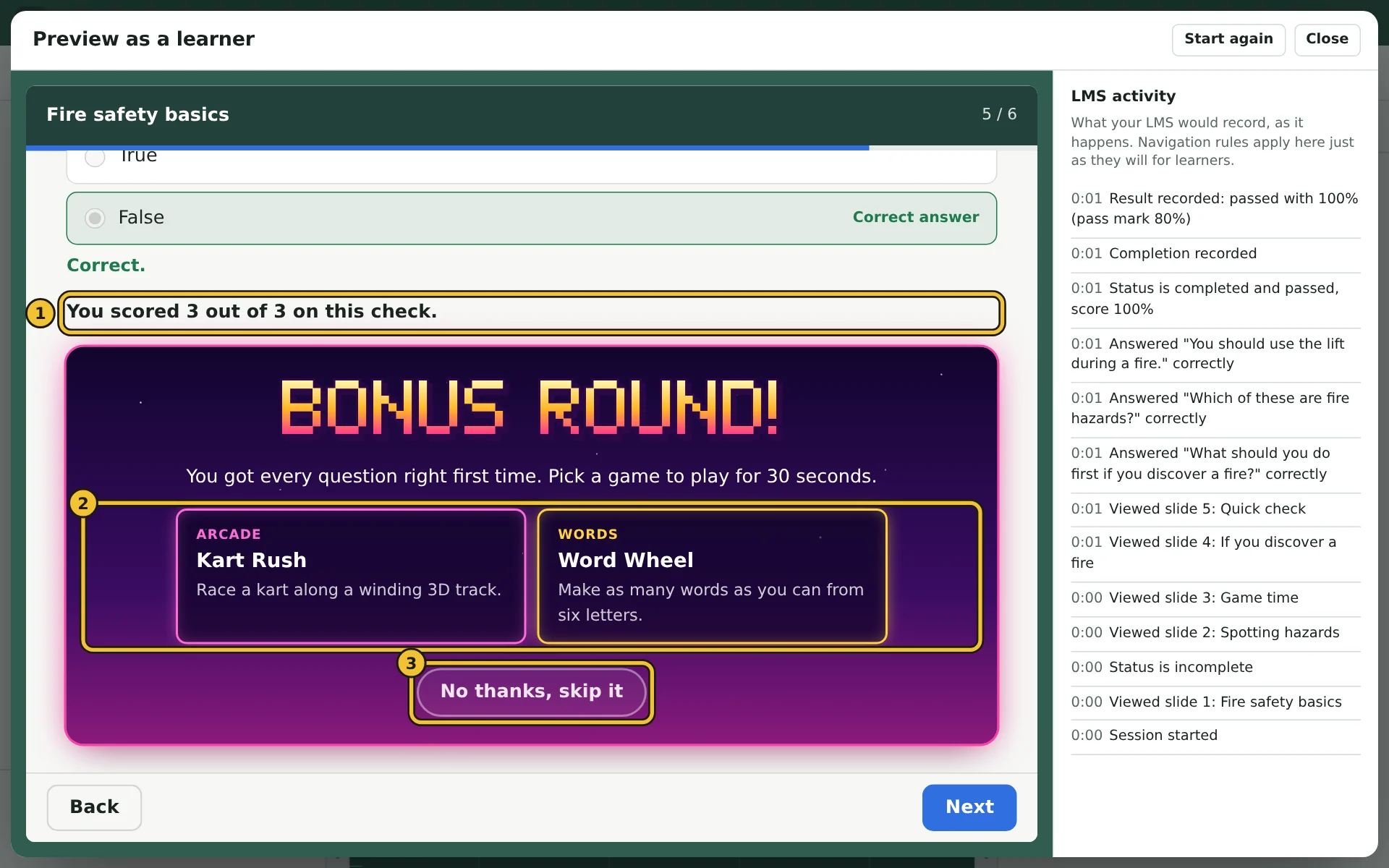
- 1Every question right, on the first try.
- 2The two games to choose from, each with what kind of game it is and a line about it.
- 3No thanks, skip it, for learners who'd rather carry on. They can change their mind with Play it after all.
Each quiz offers one bonus game, once. A perfect score on a retry doesn't earn one, so learners can't fail on purpose to play again.
2. Or add a game slide
Click a + between two slides in the slide list and choose Game, or select a slide and press Add game to put a game after it.
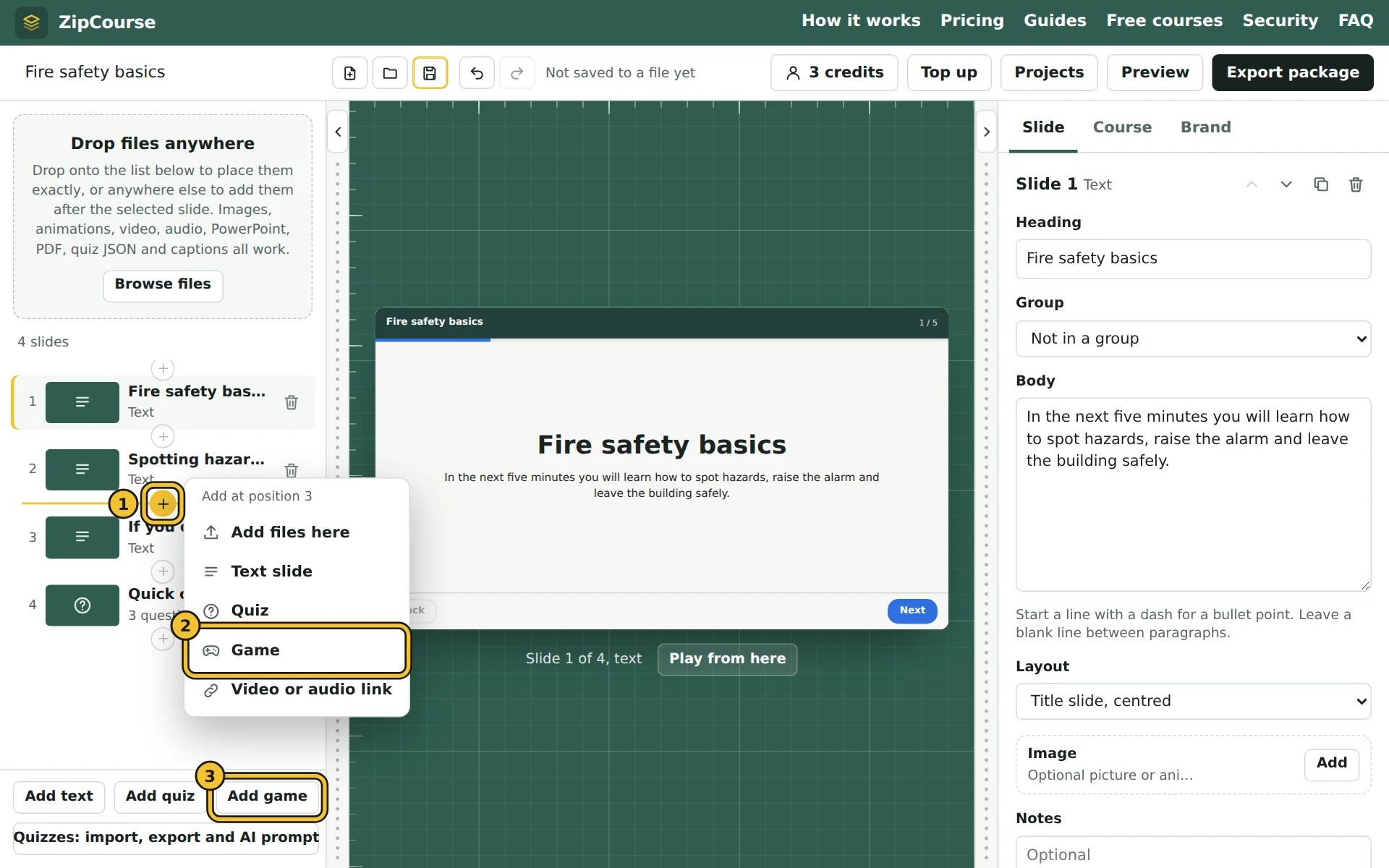
- 1A + between two slides, where the game will go.
- 2Game adds a game slide there.
- 3Add game adds one after the selected slide.
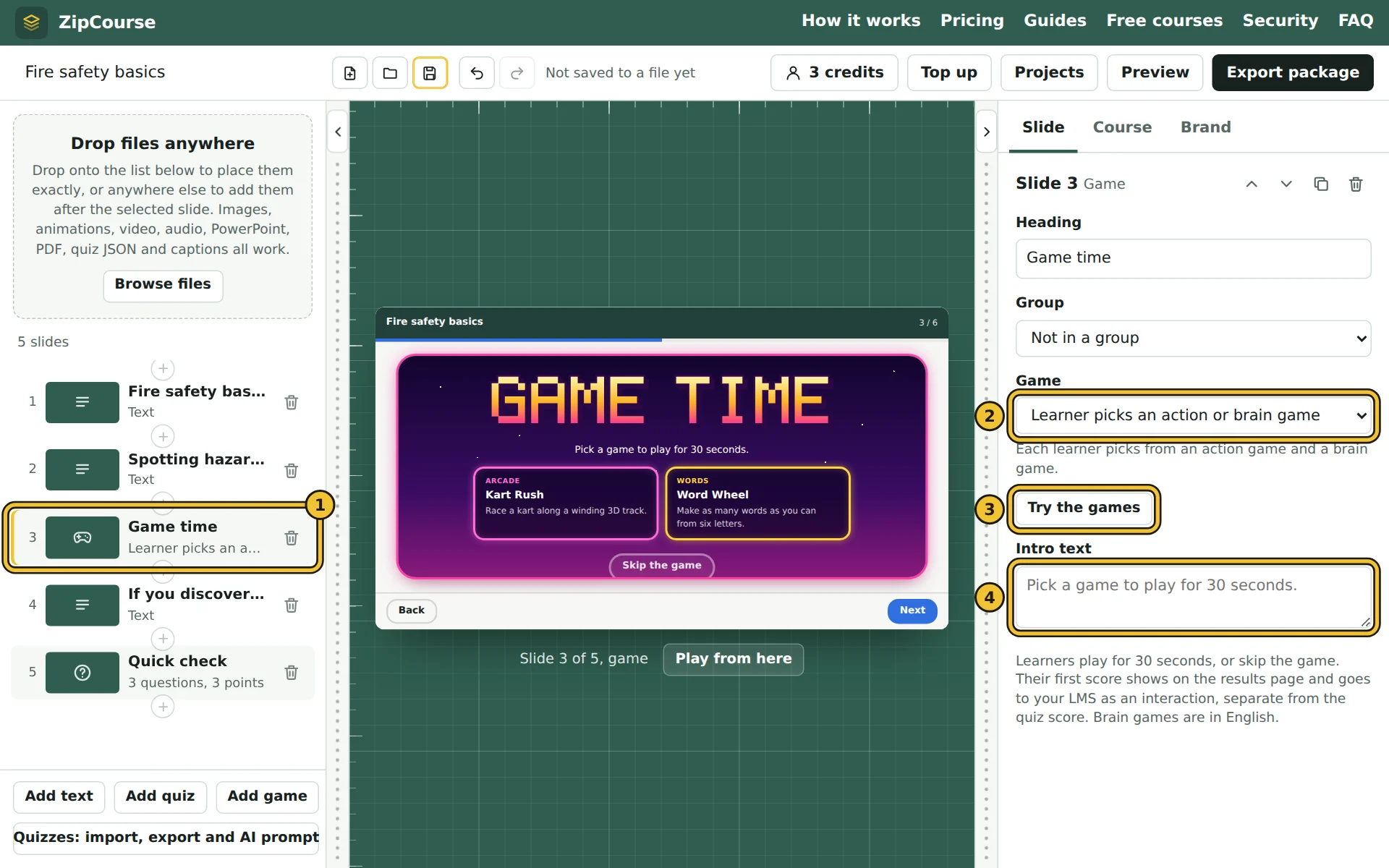
- 1The game slide, in the list like any other. Its heading is "Game time" until you change it.
- 2Game: let each learner choose from an action game and a brain game, from two action games or from two brain games, or pick one particular game for everyone.
- 3Try the games, or Play and the game's name once you've picked one, to play it yourself.
- 4Intro text: a line above the games, such as "Take a break before part 2". Leave it empty to say how long they play for.
Learners can press Skip the game to move straight on. A game slide never holds anyone up, even when learners must finish each slide before moving on. Their first score is the one recorded; after that, they can play again just for fun.
3. What learners see
Each game opens with an arcade-style start screen that says how to play and which keys to use, and shows the learner's best score so far in this browser.
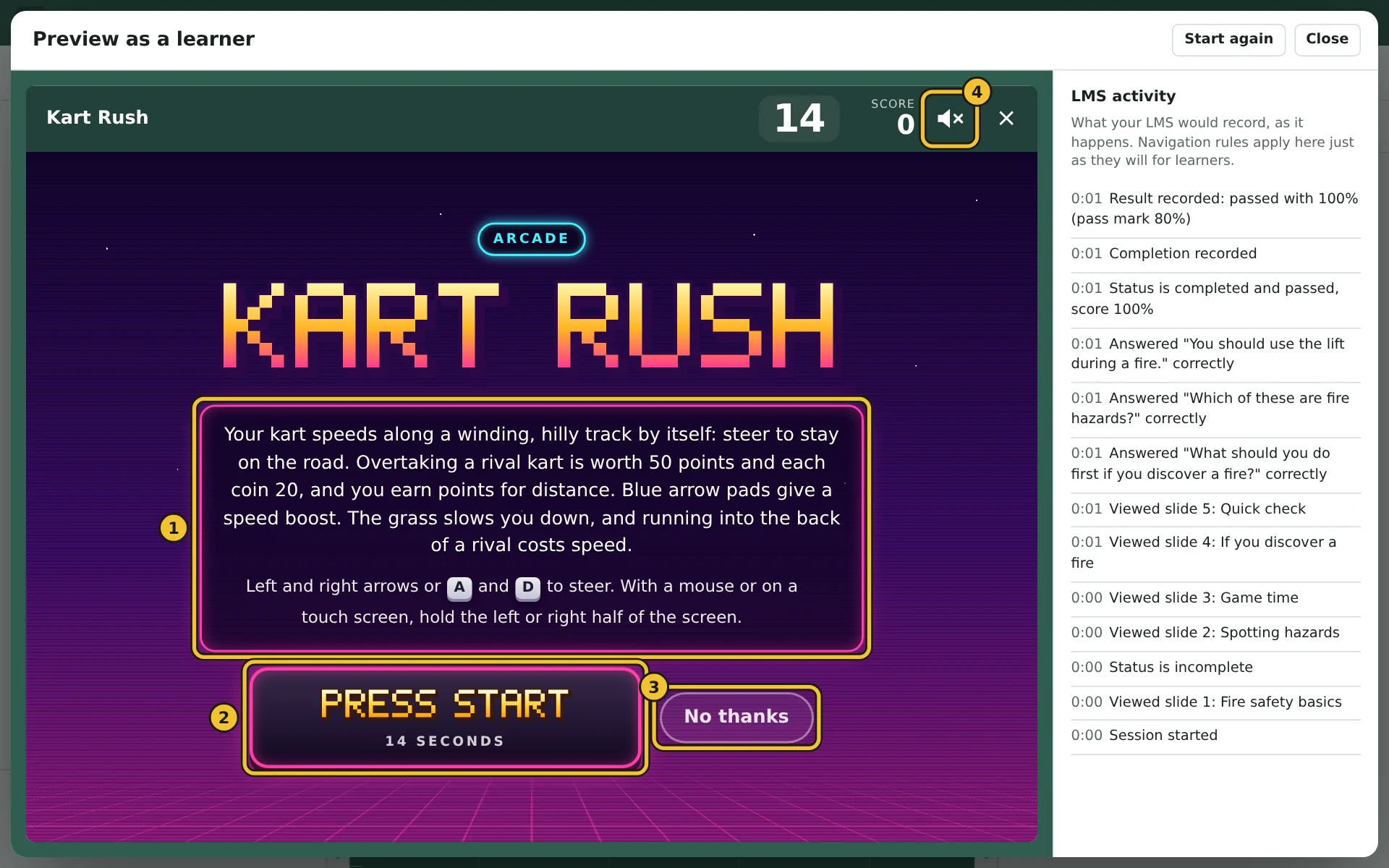
- 1How to play, how points are scored, and the keys, mouse or touch controls.
- 2Press start, and the 30 seconds begin.
- 3No thanks (Skip the game on a game slide), to leave without playing.
- 4Sound, which is off until the learner turns it on: each press goes low, medium, loud, then off again, and the browser remembers the choice.
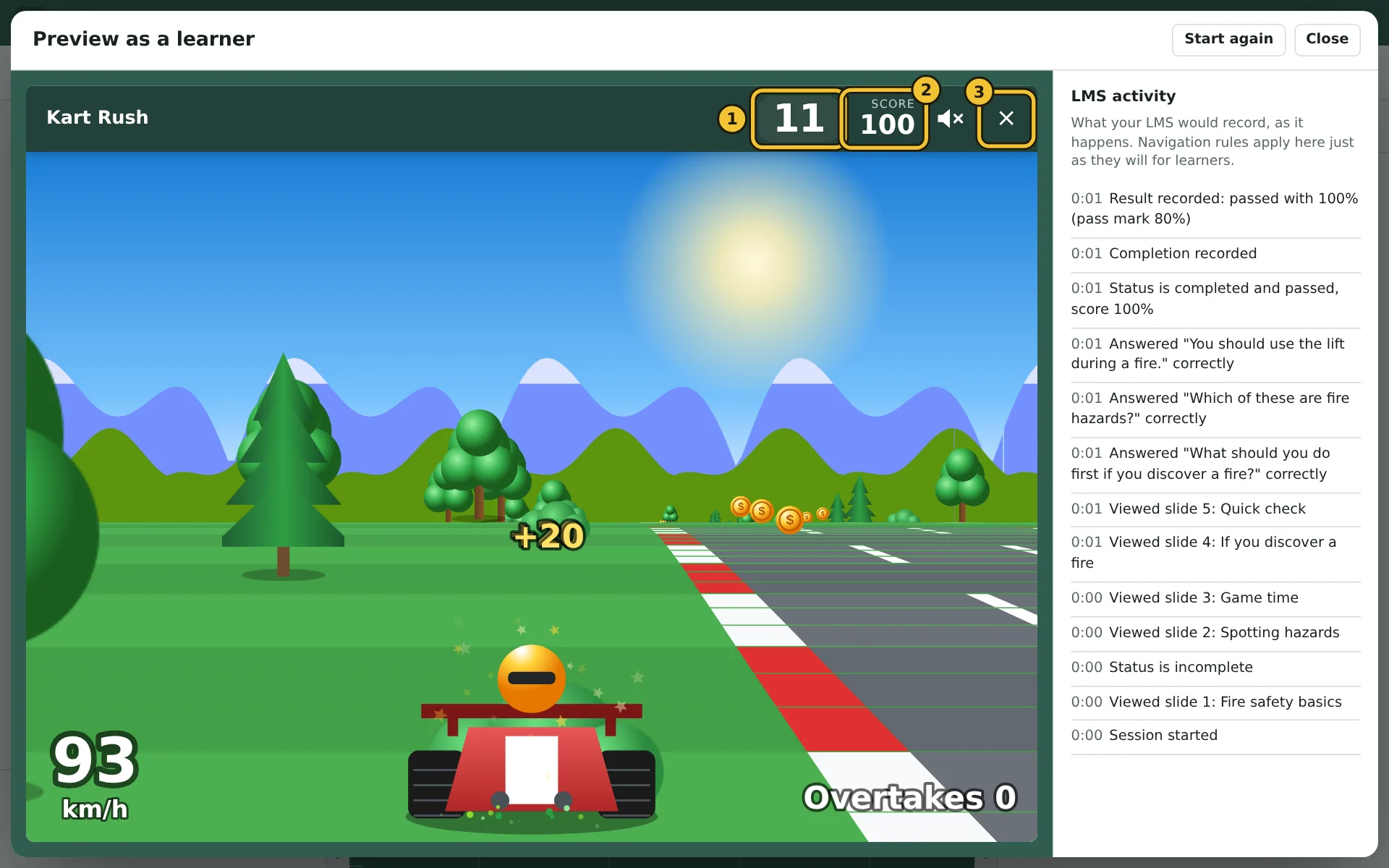
- 1The seconds left, in big numbers. For the last 3 they turn red and pulse, with a tick.
- 2The score so far.
- 3× or Escape leaves the game early. Nothing is recorded, and the game is still there to play.
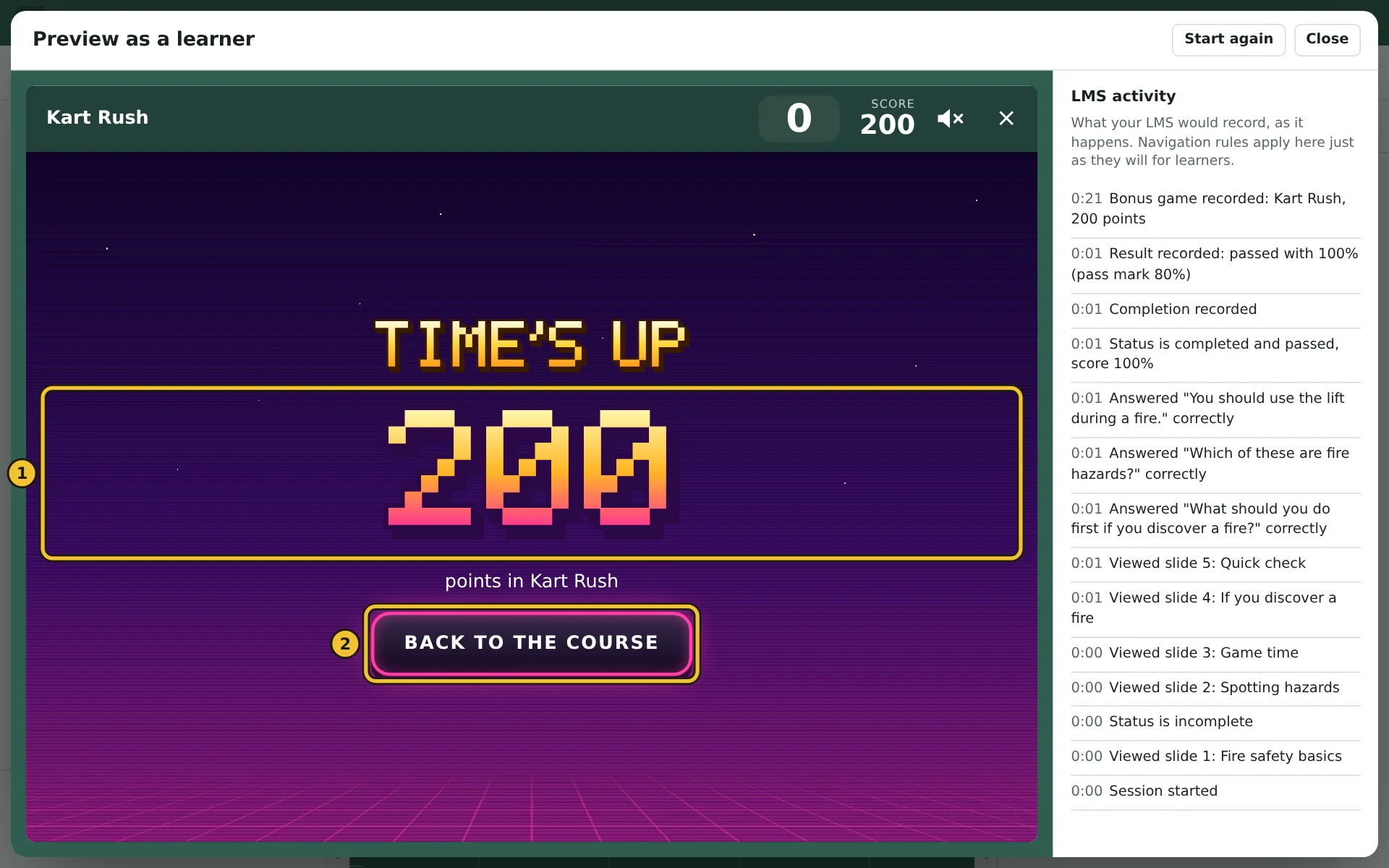
- 1The final score. It goes to your LMS now, and a new personal best is celebrated.
- 2Back to the course, which wakes up after a moment so a learner who's still tapping sees their score first.
Every game works with a keyboard, a mouse or a touch screen, and fits a phone. They are drawn as the course runs, so they need no internet connection and nothing outside the package.
The games
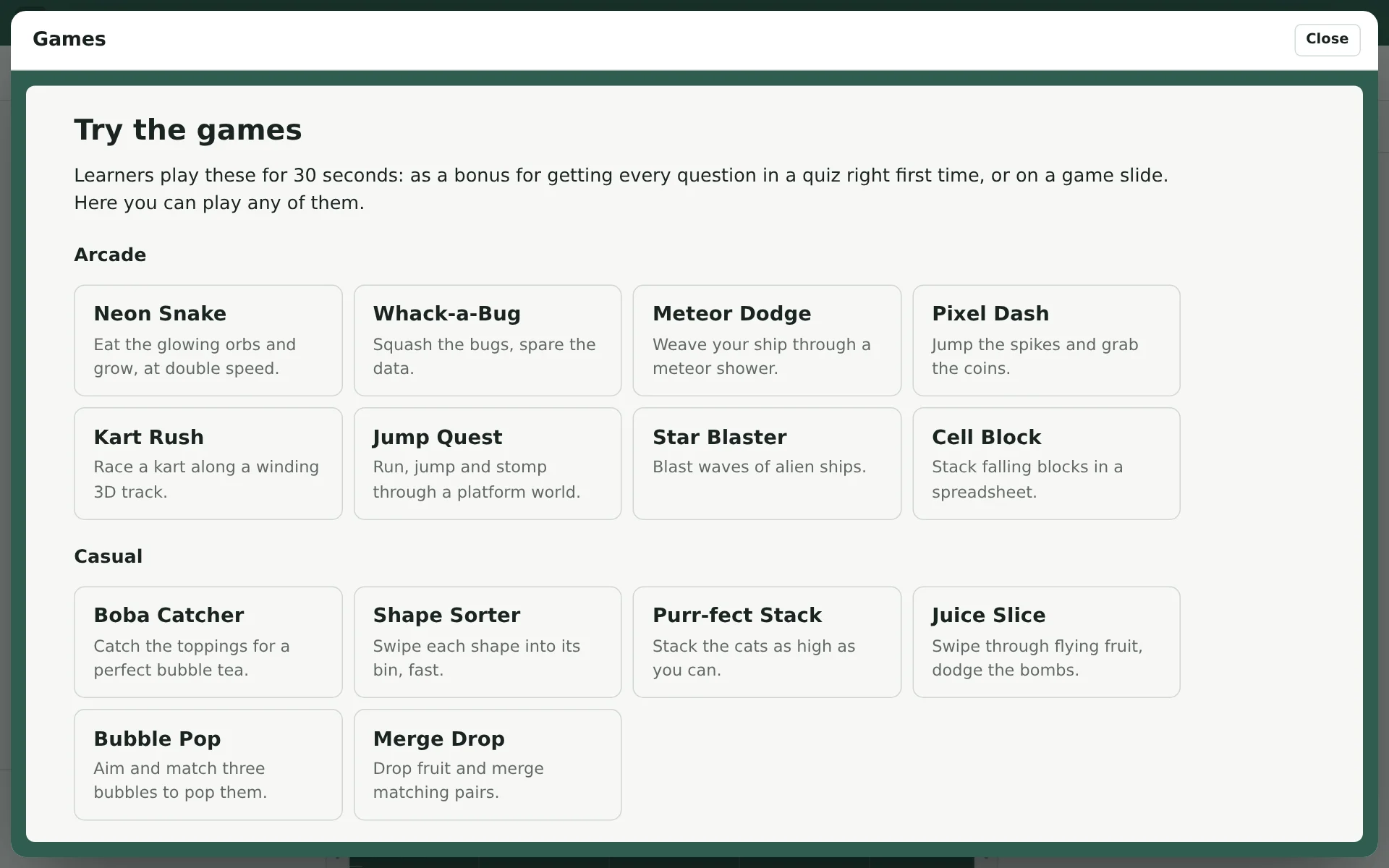
Press Try the games, in the Course tab or on a game slide, to play any of them in your course's colours. This is the list:
| Game | What it is |
|---|---|
| Arcade (action games) | |
| Neon Snake | Eat the glowing orbs and grow, at double speed. |
| Whack-a-Bug | Squash the bugs, spare the data. |
| Meteor Dodge | Weave your ship through a meteor shower. |
| Pixel Dash | Jump the spikes and grab the coins. |
| Kart Rush | Race a kart along a winding 3D track. |
| Jump Quest | Run, jump and stomp through a platform world. |
| Star Blaster | Blast waves of alien ships. |
| Cell Block | Stack falling blocks in a spreadsheet. |
| Casual (action games) | |
| Boba Catcher | Catch the toppings for a perfect bubble tea. |
| Shape Sorter | Swipe each shape into its bin, fast. |
| Purr-fect Stack | Stack the cats as high as you can. |
| Juice Slice | Swipe through flying fruit, dodge the bombs. |
| Bubble Pop | Aim and match three bubbles to pop them. |
| Merge Drop | Drop fruit and merge matching pairs. |
| Timing (action games) | |
| Lock Picker | Press just as the pin hits the green zone. |
| Perfect Pour | Hold to pour, let go on the line. |
| Beat Lanes | Hit the notes in time with the beat. |
| Mini Golf | Putt round bumpers, slopes and sand. |
| Hoop Shot | Time your power to sink the shot. |
| Maths and logic (brain games) | |
| Quick Maths | Solve each sum and pick from three answers. |
| Higher or Lower | Which is bigger? Decide in a flash. |
| Next in Line | Spot the pattern and pick what comes next. |
| Memory Grid | Remember which squares lit up. |
| Make Ten | Find pairs of numbers that add up to 10. |
| Odd One Out | Spot the one character that is different. |
| Pipe Flow | Turn the pipes to get the water flowing. |
| Words (brain games) | |
| Vowel Drop | Put the missing vowels back in. |
| Same or Opposite | Same meaning, or the opposite? Read carefully. |
| Spelling Bee | Spot the right spelling among three. |
| Odd Word Out | Which word does not belong with the others? |
| Finish the Phrase | Fill the gap in a well-known saying. |
| Word Wheel | Make as many words as you can from six letters. |
The maths and word games draw from large question banks: thousands of words, hundreds of spellings and sayings, and an 11,000-word dictionary for Word Wheel. Questions come in a random order, never repeat within a game, and the learner's browser remembers which they have seen, so their next game starts with new ones.
4. Check what your LMS records
Press Preview and play a game to the end. The results page lists each game played, and the LMS activity log shows the score being recorded:
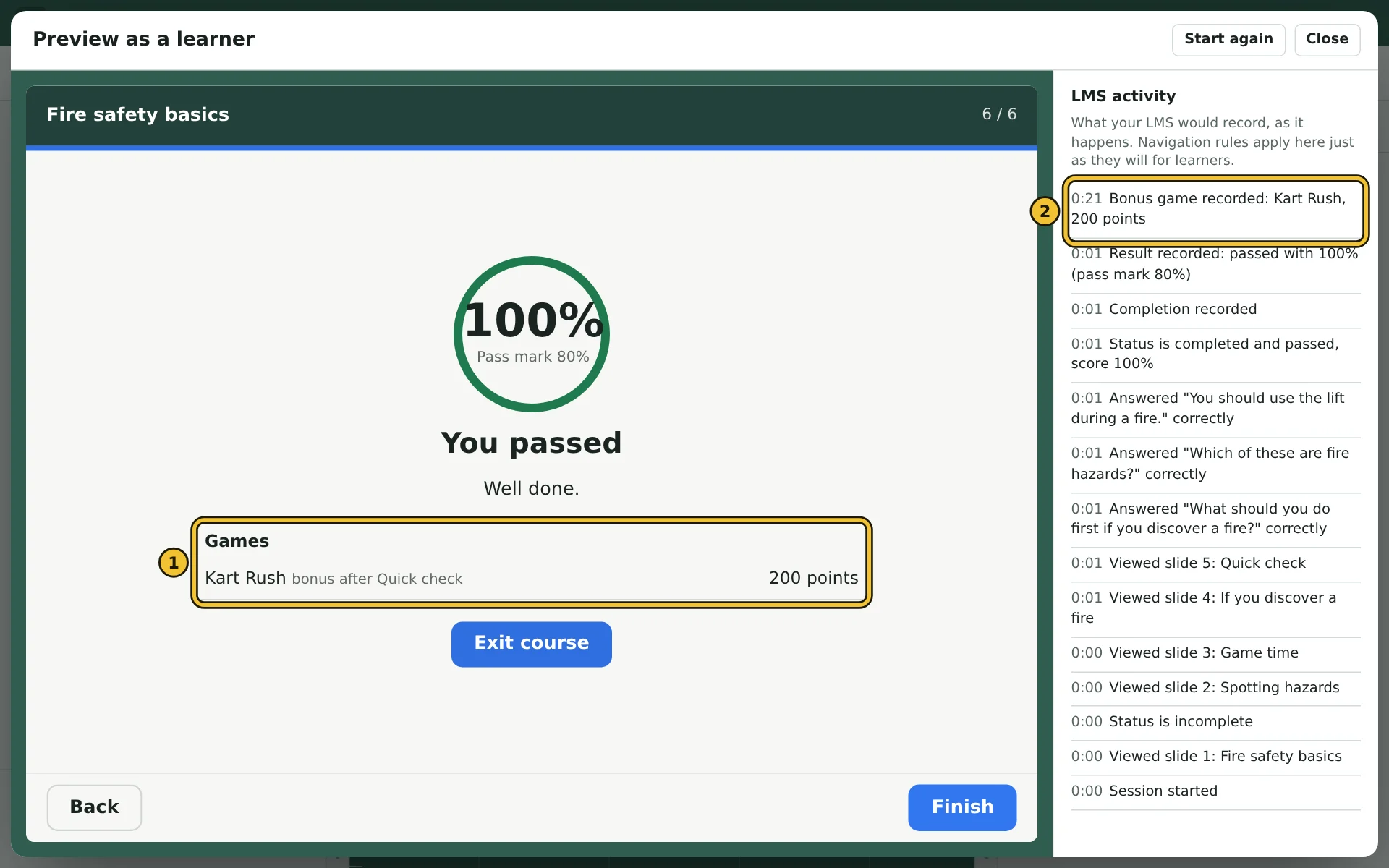
- 1Games on the results page: each game, where it was played, and its score. The quiz score above doesn't include them.
- 2The score as your LMS receives it, here a bonus game after the quiz called Quick check.
Game scores are separate from quiz scores. They don't count towards the pass mark or completion, and never change a learner's result. Each format records them in its own terms:
| Format | What is recorded |
|---|---|
| SCORM 1.2 | A numeric interaction after the quiz's answers, with the score as its response and result. |
| SCORM 2004 | A numeric interaction with the score and how long the game lasted. The 3rd and 4th editions add a description, such as "Bonus game: Kart Rush, after Quick check". |
| xAPI and cmi5 | A "scored" statement about a game activity, with the score and duration, as part of the course. |
| Web (HTML5) | Nothing is sent anywhere. Scores show on the results page and are kept with the learner's progress in their browser. |
Each game is reported by where it was played as well as which game it was, so the same game after two different quizzes appears as two records. Scores are kept with the learner's progress, so they are still there when a learner leaves and comes back.
Good to know
- Games are always optional. Every game can be skipped, so a learner who can't play a fast, visual game, or would rather not, is never held back. Keep anything learners must do in your slides and quizzes.
- Packages carry only the games they use. A course with games off has no games code at all. With bonus games on, a package carries the sorts it can offer; a game slide adds the games it needs. Every game together adds about 150 KB to the zip file, and one sort of game less than 100 KB.
- Adding games is an ordinary edit. Add them to a course you've already exported and export again: it counts as one of the course's 10 edits, like any other small change.
- Sound starts off, so a game never surprises anyone in a quiet office.